If you create content for Instagram, TikTok, YouTube Shorts, or LinkedIn, you already know one thing: motion is the new attention magnet. Static posts are fading, and a little animation can completely transform how your content performs. That’s exactly where after effects becomes your best friend.
You don’t need to be a pro animator, and you definitely don’t need complex workflows. In fact, with the right bite-sized techniques, you can bring social posts to life in under 10 minutes. This guide is designed exactly like that — short, easy, scroll-stopping after effects tutorials, paired with downloadable project files you can plug in and use instantly.
Let’s dive into 5 simple motion graphics tricks you can use today.
1. Kinetic Typography Pop
Perfect for: Quotes, announcements, reel covers, Sale posts, event reminders
Kinetic typography looks stylish, bold, and expressive — but the mini version of it is incredibly easy to create. In this quick technique, you’re simply animating text with sharp easing and staggered timing to create an eye-catching pop that feels energetic.
How to create it (super quick version)
1. Type your text in separate layers (headline + subtext).
2. Open the text layer → click Animate → Position.
3. Add a starting position (off-screen or slightly lower).
4. Add your end position (where the text finally lands).
5. Highlight the keyframes → hit F9 (Easy Ease).
6. Open the Graph Editor → give it a sharp speed curve.
7. Offset each layer by 2–4 frames for a rhythmic type pop.
8. Add shapes behind your text for extra punch — like a blurred oval or a soft glowing rectangle.
This is one of those motion graphics moments that instantly elevates your post without any extra design work.
Why it works
- Bold motion grabs attention instantly.
- Offset timing creates dynamics and life.
- Even simple text feels premium.
2. Loopable GIF Motion Badge
Perfect for: Product shots, carousel posts, website micro-interactions, “NEW”, “SALE”, “HOT DROP” badges
Loopable badges are tiny but super powerful. With just a soft rotation or blink effect, you can create a micro-animation that loops cleanly and enhances your design without distracting from the main message.
How to make it
- Create a shape layer (circle or star).
- Add text or an icon.
- Press R → set rotation keyframes from 0° to 360°.
- Add the loopOut() expression.
- Export as GIF or WebM for social-friendly loops.
This trick is quick, functional, and one of the easiest after effects tutorials you can try if you’re new to motion graphics.
Pro tip
Keep the motion speed gentle — too fast looks gimmicky.
Why it works
- It pulls the eye toward your message.
- Adds motion without overwhelming the design.
GIFs loop forever on social feeds — perfect for repeating your CTA.
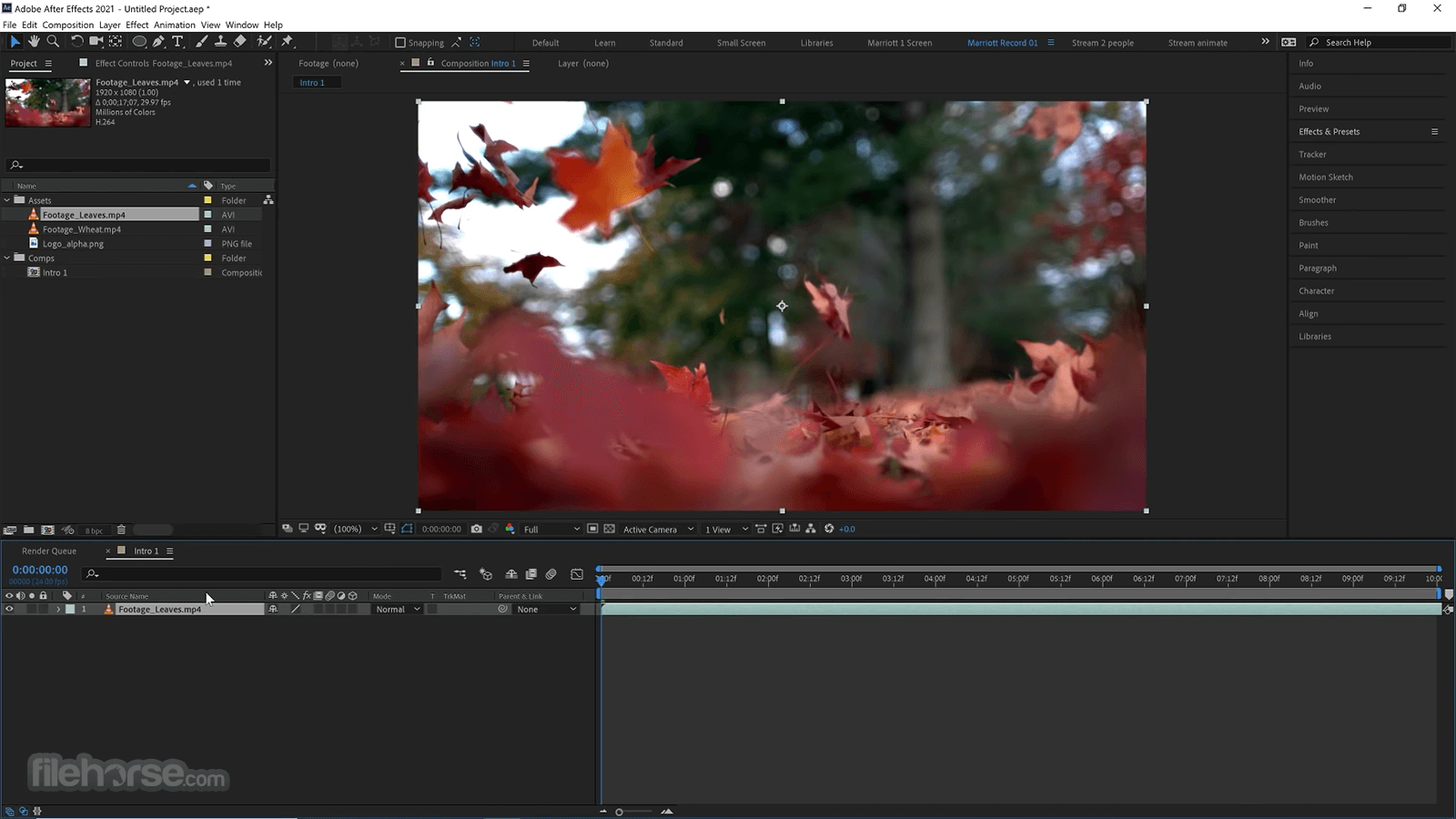
3. Smooth Parallax Camera Move in After Effects
Perfect for: Moodboards, travel photos, product close-ups, event recaps, restaurant food shots
Parallax is the secret behind those dreamy moving photos you see in reels. It gives depth, perspective, and cinematic energy — all from a single static image.
How to do it
- Duplicate your photo 2–3 times.
- Cut out foreground, midground, background (Photoshop optional).
- Turn layers into 3D layers.
- Spread them slightly across the Z-axis.
- Animate the camera with a soft zoom or pan.
- Add Motion Blur for realism.
This technique looks premium but takes barely any time. If you’re exploring after effects tutorials to upgrade your feed, this should be high on your list.
Why it works
- Mimics professional reel transitions
- Adds drama without being flashy
- Works for almost every niche (travel, fashion, food, real estate, product design)
4. Simple Bounce Animation for Icons & Elements
Perfect for: CTA buttons, arrows, emojis, app UI previews, stickers
Bounce animations are fun, friendly, and instantly likable. They add character to static designs and are perfect when you want to guide the viewer’s attention without overwhelming them.
How to create the bounce
- Select an icon or shape.
- Open Scale (S) → add three keyframes (0% → 110% → 100%).
- Apply Easy Ease.
- Use the graph editor for a sharp entry and soft landing.
- Add a tiny overshoot (102–103%) to make it feel natural.
This is one of the easiest motion graphics tricks to master and a great entry point for beginners.
Why it works
- The bounce mimics natural physics
- Adds playfulness
Helps guide the viewer’s eye
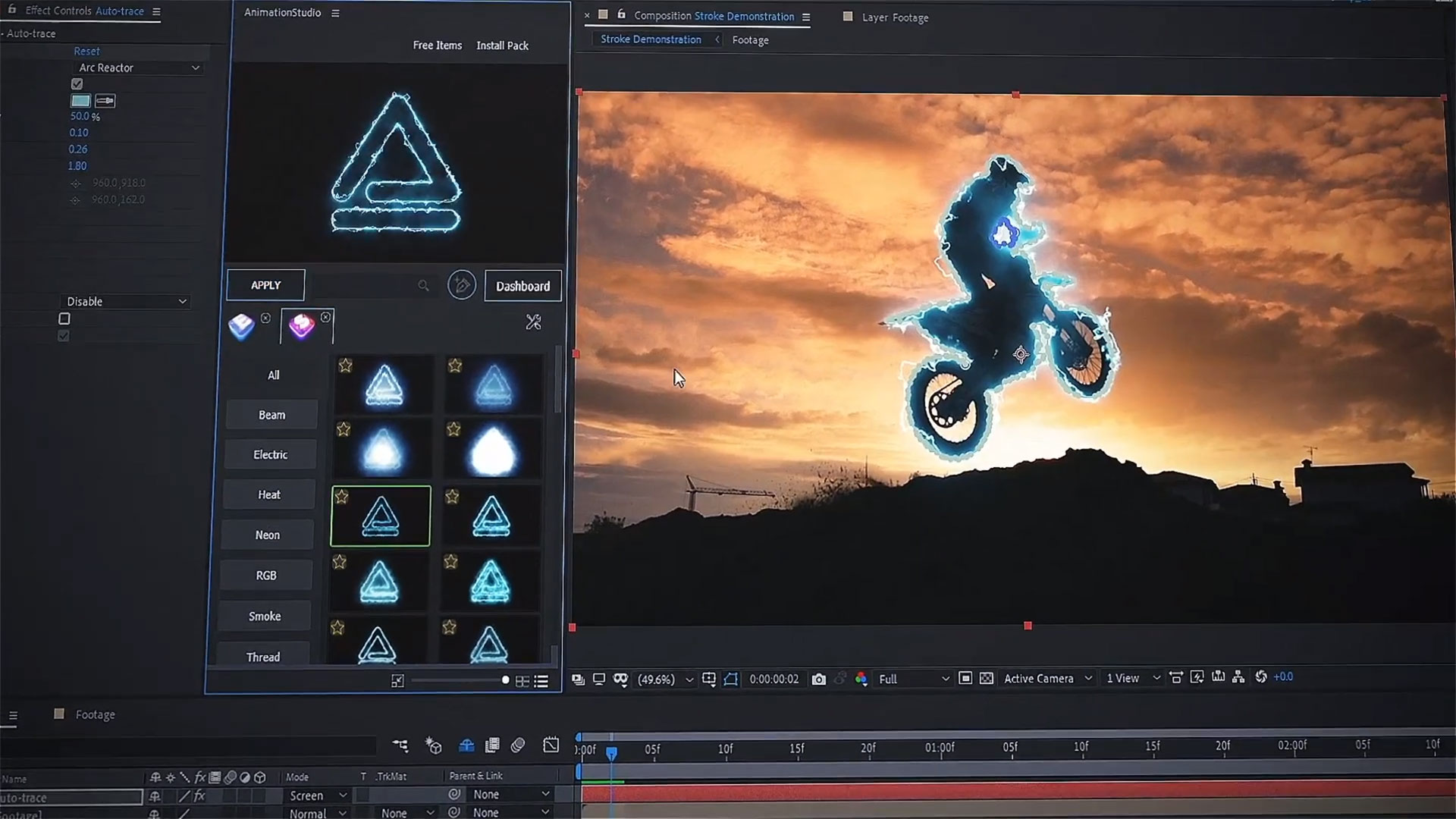
5. Flash Cut Transitions for Reels
Perfect for: Fast-paced edits, BTS videos, fashion reels, dynamic product showcases
Flash transitions are quick bursts of brightness and blur that add energy between shots. They make your edits look clean, intentional, and professionally paced.
Here’s how to do a fast flash cut
- Duplicate your clip.
- Set the duplicate layer to Add or Screen.
- Add Gaussian Blur.
- Cut the duplicated clip down to 2–4 frames.
- Animate opacity from 100% to 0%.
- Add optional Directional Blur for intensity.
If you want a transition that instantly makes your video feel polished, this is it – and it takes less than a minute to apply.
Why it works
- Gives your edit rhythm
- Hides jump cuts
- Adds drama to product reveals
- Makes transitions feel seamless and professional
Bonus: Best Export Settings for Crisp Motion Graphics For Social Media
Even the best animations get destroyed by Instagram compression. These export settings will save you:
For Instagram Reels (1080×1920)
- Format: H.264
- Preset: High Quality
- Bitrate: 8–12 Mbps
- Frame Rate: Match Composition (24/25/30 fps)
- Render at Maximum Depth: On
- Use Maximum Render Quality: On
For TikTok
- Bitrate can go slightly higher (10–16 Mbps)
- Avoid super thin lines → they pixelate
For GIFs
- Use Photoshop or Media Encoder
- Keep frame rate around 15–20 fps
- Keep colors 128 or less to reduce file size
General Tips
Avoid ultra-saturated reds (IG crushes them)
Sharpen a bit before exporting
Always preview on mobile before posting
High-quality exports ensure your after effects work looks the way it’s supposed to — sharp, smooth, and scroll-stopping.
Final Thoughts
Motion Graphics doesn’t have to be complicated.
You don’t need 3D skills, advanced rigging, or a massive render farm.
Sometimes, a 10-minute micro-animation is all you need to make your content stand out in an endless sea of static posts.
To recap, you now have:
✨ Kinetic Typography Pop
✨ Loopable GIF Badge
✨ Smooth Parallax Photo Move
✨ Bounce Animations
✨ Flash Cut Transitions
These easy to implements after effects tutorials are fast, flexible, and perfect for designers, creators, and brands who want scroll-stopping visuals without spending hours animating.